How to use OS X Leopard screen sharing with a Linux machine

Tagged:  •    •    •    •    •  

Apple's brand new Leopard version of OS X includes handy support for connecting to shared remote screens right from the Finder. The intention was to connect to other Macs, but with a bit of tweaking you can also connect to VNC servers running on Linux machines with the same ease.

Bonjour, Penguin!

In the new "Shared" section of the Finder's sidebar, the listed servers are actually those that advertise interesting services on the local network via Bonjour (a.k.a. ZeroConf or mDNS).

My home Linux server (running Debian unstable) was advertising its AFP network file volumes using ZeroConf thanks to a bit of prior Avahi configuration, so it showed up automatically in my Leopard Finder.

I run a VNC server on that Linux machine, which happens to listen on port 5901; it's started with the following command line:

tightvncserver -geometry 1024x700 -depth 24 :1

(The port number is 5900 plus the display number -- here 1.)

For the "Share Screen..." button to magically appear, I needed to tell Avahi on the Linux machine advertise the VNC server, by adding the file /etc/avahi/services/rfb.service, with contents as follows:

<?xml version="1.0" standalone='no'?>
<!DOCTYPE service-group SYSTEM "avahi-service.dtd">
<service-group>
  <name replace-wildcards="yes">%h</name>
  <service>
    <type>_rfb._tcp</type>
<port>5901</port>
  </service>
</service-group>

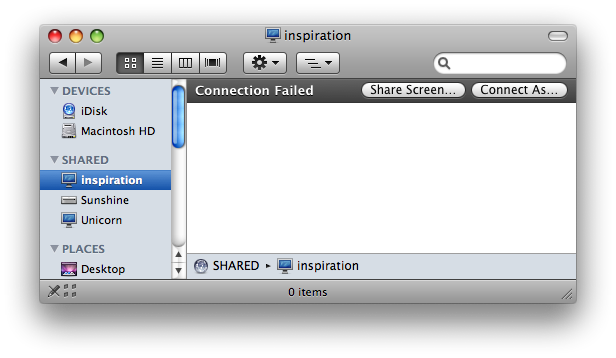
Avahi automatically detected the new service descriptor, and the machine (called "inspiration") showed up in my Finder instantly:

Finder displaying Linux machine in Shared section of sidebar, with Share Screen button enabled

(Aside: my guess is that the "Connection Failed" text is because the Linux machine, unlike Leopard Macs, has no Guest account -- Leopard appears to try connecting to file servers as Guest automatically.)

Trying the magic button

Clicking on "Share Screen..." now brings up the swanky new Screen Sharing application, which first prompts me to enter the vncserver password, and then displays the following warning:
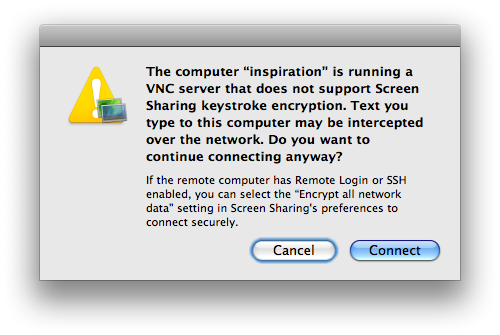
Warning when connecting to a Linux VNC server from Finder

(As far as I know, no Linux VNC server software supports the keystroke encryption that Screen Sharing would like to use. Changing the preference mentioned in the dialog also didn't help, even though the Linux machine runs an ssh server and advertises it via Bonjour.)

Clicking "Connect" brings up my Linux desktop, running KDE:
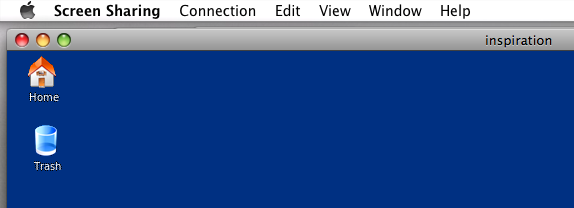
Connected to a Linux VNC server

This is all very convenient!

Connecting to non-VNC Linux desktops

My Linux server is headless, and doesn't run a regular X server connected to a monitor via a video card. If your Linux server does not run vncserver, and instead is plugged into a monitor, you should still be able to connect; KDE has built-in support for screen sharing, so it should be a simple matter to advertise the shared screen as described above. (Port numbers may differ in that case.)

I'm connecting my Macbook Pro to a laptop running Linux Mint 7, which is Ubuntu based.
The VNC connection seems to be solid, and while I can control the Linux machine with the mouse and keyboard on my Mac, (the screen on the linux machine responds fine) the image displayed by the screen sharing window on the mac doesn't change, save for the cursor.
Any ideas?

Thanks in advance.

I also cannot see updates on the Macbook end while I can control the keyboard and cursor on the Jaunty Box.

I have to be logged in on the Linux box, in order to connect from my mac. Is this the only way ?I currently have to swap monitor cables around whenever I turn the machine on so I can see what I am doing to log in. Then I can unplug so I can use 2 monitors on my mac book, and I just connect to my ubuntu server via screen share pretty much seamlessly.

So basically I just want to be able to turn on the Ubuntu box, and then it appear in my finder ready to connect.

Anyone know is this is possible. Th other option I know is to set up auto login, but I have a another problem in that it doesn't like my video card and I have to go through a load of dialog boxes before I can log in, so the auto loggin isnt very auto for me :-)

Thanks in advance to any one who has some info.

Dave

This article really helped me connect my Macbook Pro to my Kubuntu 8.10 Server. Still having some display problems, but connection works great.

Great post. I have used JollysFastVnc to connect Macs for a good while and always pleased with the amazing results.... but is there a similar client for Linux?

Many Thanks

Hello, and thank you for these excellent instructions. I'm new to the Mac (absolutely love my MacBook Air) and learning new things every day. Finding this VNC support already built into the Finder is just amazing. I was able to log into my office Ubuntu server 10 minutes after arriving at Starbucks and finding your post.

One quick question. Is there an elegant way to disconnect the ssh tunnel once I'm done. I can kill PID, but that seems so barbaric.

Thanks much.

connect to server worked for me as well, without AFP or anything in the finder side bar. just make sure you add the port as well. this stumped me for a minute...

in finder: connect to server (command/apple K) and enter ip:590X where X is the screen number (1 for me.)

i VNCd to Ubuntu serving with tightvnc.

It works for me. I've tunneled the connection in SSH and it still works.
Basically, i just need to connect to my server by SSH. In finder, Go > Connect To Servers... type vnc://localhost:5901

However, it's pretty slow when compare with Chicken of the VNC.

Can't let a mention of the words "slow" and "vnc" go by without mentioning JollyFastVNC. It's under active development with fairly regular releases, it's lightning fast, and works well for me. Check out the demonstrations on the site -- watching videos over a VNC connection!

am running a debian
couldnt get the Linux screen to appear on my mac using these instructions...

I'd be equally interested in having my mac screen on my linuz desktop, anyone knows how to do that ?

herve

You need to enable "Apple Remote Desktop" on the Mac (search for it in System Preferences), then on the Linux machine you need vncviewer installed, and you can launch it with something like this:
$ vncviewer 192.168.1.15
(assuming that the two machines are on the same local network and that the Mac's IP address on that network is 192.168.1.15).

Good luck with it.

I have a little problem.
I'm trying to open my mac (leopard) screen from a linux (fedora) machine, the connection was successfully made and ask me the password, but it then gives me a message ilke this (after I enter the password):

TXImage: Using default colormap and visual, TrueColor, depth 24.
CConn: Using pixel format depth 6 (8bpp) rgb222
CConn: Using ZRLE encoding
main: End of stream

Thanks in advance.

just tried to connect t omy mac using vncviewer and I got the same message. i am using fedora as well...

i got it to work by selecting "full color mode" - step by step ...

command-line: vncviewer -FullColor hostname

or gui

run vncviewer
select: options -> "full (all avail colors") -> ok
type in hostname -> type in password

voila?

lemme know how that works for you...

david

vncviewer -FullColor works!

Thank you!

I am running VINO at my ubuntu machine. Before i do what you are saying i wad able to see my ubuntu machine as a windows pc (with the blue screen of death) . Now i can see it twice. How can i remove the old one?

Thanks a lot

It doesn't ask for my user name, just my password. My user account on my ubuntu box has a different name then my mac. How can I get it ask for my user name and password. Thanx

It is normal that you will not be asked for a user name; VNC has no notion of screens being owned by individual users.

By following this guide, you will advertise a single password-protected screen via Bonjour/ZeroConf, not a service that allows you to connect as an arbitrary user. Any user on the Mac can browse to that screen and access it, provided they supply the password for the VNC screen.

Hope that helps.

Hi,

Thanks for the tip, works great.

But, I can't seem to connect to my shared drives on the same server anymore. Before trying your trick, it already recognized the samba shares when I clicked on the server name in finder. It would then display the shared drives. But now, it won't connect to these drives and gives me a connection failure.

Any ideas?

Remo

Hi Remo,

I didn't have that problem with my AFP shares, which are also published explicitly using an Avahi config snippet. My Samba shares were never published. I'm not sure how Samba was previously registering itself as a Bonjour service for you. If you've restarted Avahi to pick up your changes (not necessary, I believe), perhaps you must also restart Samba? -- this is the case with mt-daapd, for example, which dynamically registers itself with Avahi at start-up, but then becomes deregistered if Avahi is subsequently restarted.

Disclaimer: I'm far from being an Avahi expert; I just know enough to hurt myself. :-)

-Steve

If you know the DNS name or IP of the box running VNC, just choose connect to server in Finder (Go -> Connect to Server) and use vnc://servername as the address. Will open screen sharing and connect.

I was already running vnc (ubuntu), but couldn't get Screen Sharing to connect. Thanks for posting the info about advertising via Avahi. Works great now!

Thanks for the easy setup instructions. I have this working perfectly on my Debian Etch box with avahi, netatalk, and tightvnc. I originally gave it a try with x11vnc, since I'm interested in controlling the existing display (ie display :0), but after connecting for a few seconds the connection would drop. Anyone have any luck getting screen sharing to work with x11vnc?

If you change the port in the rfb.service file to 5900, you should be able to use the following x11vnc command:
x11vnc -rfbauth /home//.vnc/passwd -display :0
to access display 0 on your linux box but, when I close the screen share window it kills the x11vnc on the linux box.

Question, do you have any idea why when I try to connect to my ubuntu box it doesnt ask for my user name, just asks for my login

Thanx

Better command-> x11vnc -shared -forever -rfbauth /home/desired_user/.vnc/passwd -display :0

Syndicate content